

Installing and Using Expert Advisors (EAs) in MT4
Installing and Using Expert Advisors (EAs) in MT4
"Learn how to install and use Expert Advisors (EAs) in MetaTrader to automate your trading. This guide explains setup, configuration, and tips to run EAs effectively on MT4."
Wikilix Team
Educational Content Team
10 min
Reading time
Intermediate
Difficulty
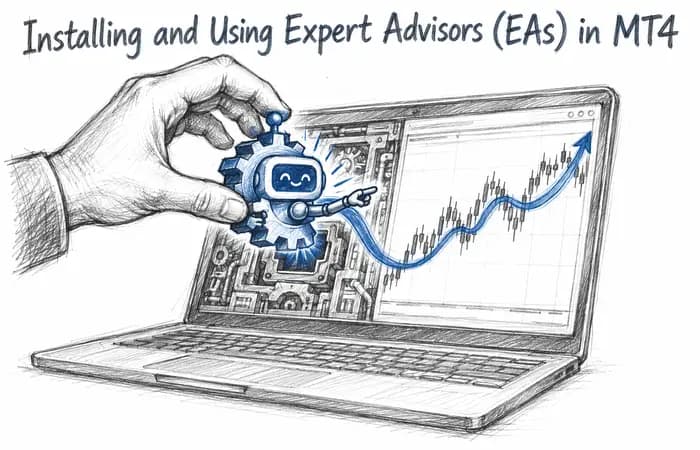
An appealing characteristic of MetaTrader 4 (MT4) is the ability to operate automated trading systems called Expert Advisors, or EAs. EAs are programs that can open, manage, and close trades based on rules that you either specify or that have been programmed into the EA by the developer. For many traders, EAs are as close to having a personal trading assistant as you can get. This assistant can trade with no concurrent fear, greed, or fatigue.
But how do you actually install and use them in MT4? Let's walk through how to install and use them step by step.
What Is an Expert Advisor
An EA is essentially a piece of software written in the MQL4 programming language, and instead of you reviewing charts manually and placing trades, the EA will trade for you.
Some EAs are simple; for instance, the EA may will follow one moving average crossover signal. Other EAs are very advanced, using multiple indicators, risk management settings, and other money management protocols. What makes these systems unique is once you engage the EA, the EA formally follows directional rules and/or uses preset continuous rules. Humans can struggle with sticking to the rules of a trading system indefinitely or when in high-stress positions.

Install the EA in MT4
It is not difficult to construct the EA into your MT4 platform, just follow the following steps:
Download EA file. The file will usually be .ex4 or .mq4.
Open MT4, go to the top left corner and select File → Open Data Folder.
In the new window that you opened navigate to MQL4 → Experts.
Copy and paste the EA file into this folder. Close and reopen MT4 so it recognizes the new EA.
It should now appear under Navigator → Expert Advisors, and you can now drag it on any chart to enable it.
Enabling Automated Trading
Automated trading strategies require MT4 to allow them to execute. At the top of the platform there is a button “AutoTrading” and to enable the EA, click the button blue so it turns green.
When you attach the EA to the chart, a settings box will pop. Within the settings box, you can adjust inputs such as lot size, stop loss, take profit and any custom settings implemented by the developer. By confirming that the settings are accurate, you should see a “smiley face” in the top right corner of the chart meaning that the EA is activated and executing trades.
Managing Your EA and Monitoring Performance
Even though it is automated doesn’t mean you can ignore it completely. You should definitely follow the performance and make adjustments where possible. Here are some of the things to monitor:
Is it following the expected rules?
What is it doing in different market conditions?
If volatility spikes as your EA is executing, is your account balance going to be okay?
You can always remove or stop an EA running, by right clicking on the chart and selecting Remove.
Pros and Cons of Using EAs
Like any tool, Expert Advisors come with advantages and disadvantages.
Pros | Cons |
|---|---|
Trades without emotion | Can fail in unusual market conditions |
Works 24/7, even when you sleep | Requires monitoring and risk control |
Consistent execution of strategy | Not all EAs sold online are reliable |
Great for backtesting strategies | Over-optimization may hurt live results |
For certain events, they can be a powerful tool, but they are not guaranteed machines that produce money automatically.
A Simple Example
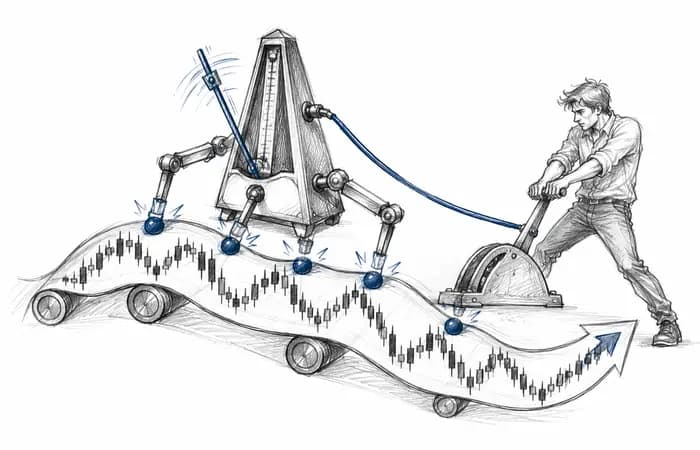
It could be as easy as an EA that buys when the moving average crosses over (above) another moving average and sells (below). Instead of sitting at your computer waiting for it to crossover, the EA will identify the setup, fill the orders, and manage stop loss and take profits.
For the busy trader, the EA will save you hours of screen time without looking back. But in the case the market conditions change (major news), it may continue following its rules even if it is not ideal conditions. This is human management.
Tips for Using EAs
If you are a brand new trader using Expert Advisors, here are two simple messages:
Use demo trading – Always test EA's on demo accounts first so you can see how it behaves without real money.
Begin with low-risk trading – New E.A's look great, risk to begin is minimum lot size. Once you see how well it does over time, you can ramp up risk.
Summary
Expert Advisors on MT4 can take a lot of the heavy lifting out of trading. They are designed to execute trading strategies with discipline, consistency, and speed, while excluding emotion. However, your EAs require good setup, testing and monitoring.
If you are testing out free EAs or looking to create your own, start smooth, observe results; and always remember risk management.
For more guides and examples on how to use MT4 features, the Learn section on Wikilix, has been built and designed to meet the needs of traders like you to manage both manual and fully automated strategies effectively and sensibly.
Frequently asked questions
Answers to the questions readers ask most about this lesson.
Comments & Reviews
0 entries
Nothing on the record yet
Be the first to share what happened.
What's Next?
Keep building your knowledge with our structured learning path. Each section builds upon the previous one.