

MT4 Shortcuts & Hidden Features for Faster Trading
MT4 Shortcuts & Hidden Features for Faster Trading
"Explore the best MetaTrader shortcuts and hidden tools that make trading faster and more efficient. Master quick commands to manage charts, orders, and positions seamlessly."
Wikilix Team
Educational Content Team
12 min
Reading time
Intermediate
Difficulty
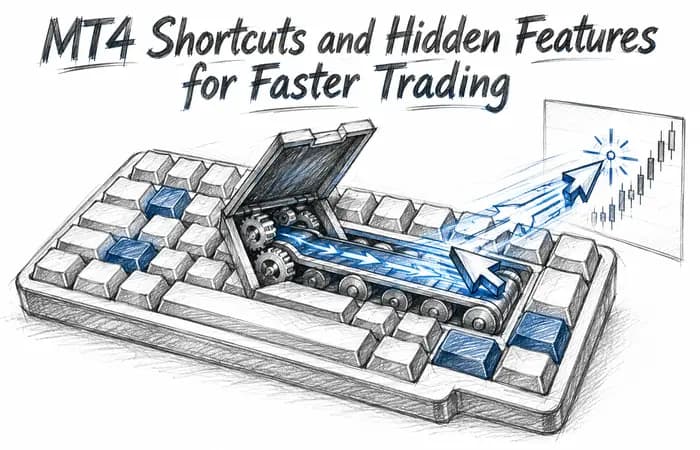
MetaTrader 4 (MT4) is nearly 20 years old and although newer platforms keep coming and going, it is still popular with traders. One of the reasons it’s so loved by traders is that you can adapt it to your style. However, many traders are still scratching the surface of what MT4 can do. If you’ve ever thought that it was slow or cumbersome to work with, you’re probably not taking advantage of the shortcuts and hidden features MT4 offers.
Let’s take a look at some of the most time-saving features in MT4 that will allow you to trade quicker and efficiently.
Keyboard Shortcuts Every Trader Should Know
As with any software, some keyboard shortcuts in MT4 can dramatically make your speed of use increase. These can be particular useful as you make the transition into trading currencies.
F9 – Open the "New Order" window instantly.
Ctrl + T – Show the terminal that tracks trades, history, and alerts.
Ctrl + M – Show/hide the Market Watch window.
Ctrl + N – Open up the Navigator to see your indicators, account, and Expert Advisors.
+ / - keys – Zoom out or in on your chart quickly.
Once you get accustomed to these shortcuts you’ll be breezing through MT4 in no time.
One-Click Trading
While MT4 has a reputation for having a steep learning curve, one of its more underrated features is One-Click Trading, an easy way to place trades from the chart with no need to open the full order window. In fact all they will have to do is choose "Buy" or "Sell" while deciding what lot size they wish to trade.
To activate it, right-click on your chart, select OneClick Trading, and a small panel with buy/sell buttons will appear in your screen. This feature will be particularly useful for scalpers and day traders looking to react to price movements in a timely manner.
Templates and Profiles
If you’ve ever customized a chart, by adding indicators adjusting colors and having your favourite timeframes all setup properly, only to realize that you will have to redo the same thing for a new pair, then you are going to love templates and profiles.
Templates will save the individual chart setups for you. You can reapply the same look and indicators to your new chart in seconds.
Profiles will save entire groups of charts. For instance, you may have a profile for the Forex majors and include a separate profile for commodities with their own layout.
This makes it easier to save time and ensure that everything stayed organized with your workspace.
The Crosshair Tool
I think most traders don’t realize how powerful the crosshair tool is. You can turn it on in either of two ways: Press the middle mouse button or hold Ctrl + F. Once you have set it on your chart you will see three numbers: a distance in pips, number of bars, and the price level.
For example, if you wanted to measure how many pips a move covered simply click and drag the crosshair over the desired distance shown. In a quick glance you will see exactly how many pips the market moved and over how many candles. It all happens so fast which is what makes it so powerful, rather than taking the time to manually calculate, which would take much longer to estimate.
Magic in Drag-and-Drop
Here’s a useful secret: you can drag and drop trades right off the Account History tab onto your chart. MT4 will then show you exactly where you entered and exited a trade as well as any stop-loss and take-profit levels that were set.
This is very useful for going back and reviewing past trades, as well as identifying when your trading, for instance, was successful, and you were right about what your expectation of the trade was originally. Instead of flipping between windows, you can see your history visualized in the chart.
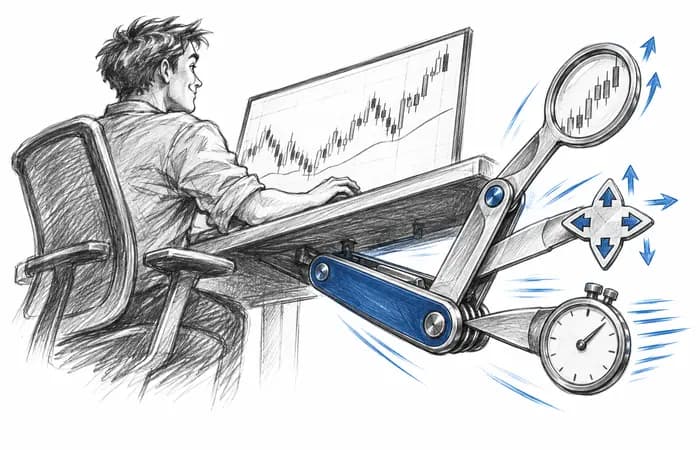
Hotkey Customization with Scripts
If you want even more speed, the MT4 program allows you to use small scripts for repetitive actions—like closing all trades at once or placing multiple pending orders for example—and then assign hotkeys to those scripts through the Navigator.
This could save your trading life. You would simply assign a hotkey to the script, you could close all of your trades with your finger. It takes a little setup, but when you are done, it makes it feel like you are in "pro mode" on MT4.
A Quick Table of Useful Features
Feature | Shortcut/Action | Why It Helps |
|---|---|---|
New Order | F9 | Open trades instantly |
One-Click Trading | Right-click chart → Enable | Faster execution without extra windows |
Terminal Window | Ctrl + T | Track all trades quickly |
Crosshair Tool | Ctrl + F or middle mouse | Measure pips and bars easily |
Dragging Trades | From History to Chart | Visualize past trades for review |
An Example Short Story
Let’s say you’re feeling nervous watching the EUR/USD during a fast-moving news release. You have one-click trading enabled so you jump on the move immediately. Next, let’s assume your chart is set up correctly so you use the crosshair tool and track the move to see if it is worth a hold.
After a few minutes of anxiety—you drag it from acc history onto the chart to see the entry and exit of trade. It’s all happened in seconds—on most days this would have taken minutes if you were to get up and check up through the menus and your own calculations.
This is the true superpower of MT4’s hidden features; it has reduced time spend, friction in your processes, and allowed you to focus on analysis and decision making.
Conclusion
Meta Trader 4 may appear to be a simple place to start to trade, but once you start exploring your own shortcuts and those hidden features, MT4 becomes a much faster and more versatile platform. From keyboard hotkeys to one-click trading to crosshairs to templates, each tool is there to optimize your workflow.
The more MT4 can be customized and designed into an example of your style or how you approach trading, the less time you will spend developed and clicking around in MT4 and more time in making professional, smart trade decisions.
If you are still interested in learning practical tips and step-by-step guides from MT4, please browse through the Learn section in Wikilix full of practical learning material for trading for speed, clarity, and confidence.
Frequently asked questions
Answers to the questions readers ask most about this lesson.
Comments & Reviews
0 entries
Nothing on the record yet
Be the first to share what happened.
What's Next?
Keep building your knowledge with our structured learning path. Each section builds upon the previous one.
This is the last section
You've completed this course!